Capture your room.
Allow camera access when starting ScanRoom. Follow the app’s scanning guidance to capture the room and the surfaces you intend to work with.
 TileVero.
Get in touch
ScanRoom / Start with the space
A useful first look,
before the numbers.
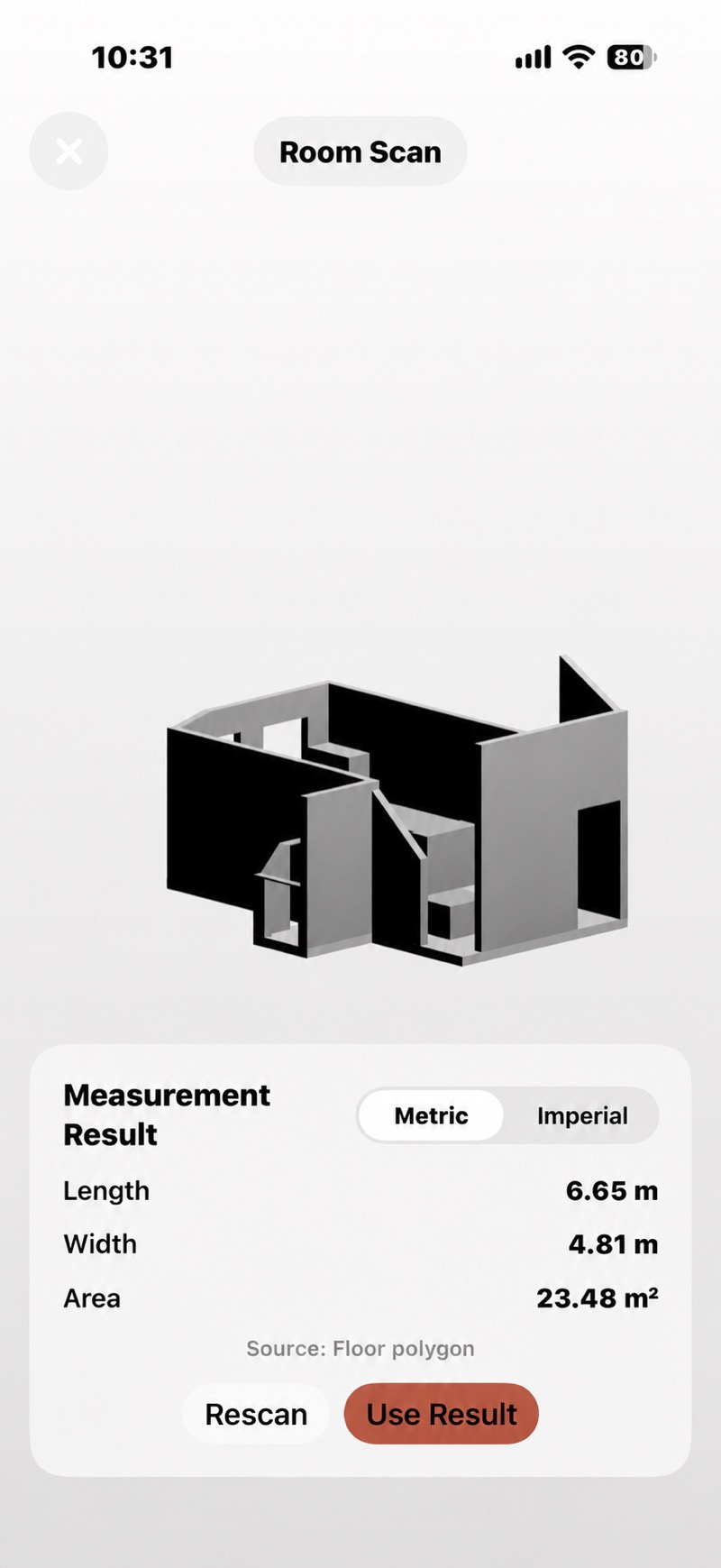
On a compatible LiDAR-enabled iPhone or iPad, ScanRoom uses Apple’s RoomPlan to help capture room geometry. Review the result, check dimensions on site, and bring the measurements into your tile plan.
From measurements to tilesRequires iOS 26.0 or iPadOS 26.0 or later, plus a device with LiDAR and RoomPlan support. Camera permission is needed for scanning.
A thoughtful workflow
Allow camera access when starting ScanRoom. Follow the app’s scanning guidance to capture the room and the surfaces you intend to work with.
Look for missed corners, openings and irregular edges. Compare the dimensions with on-site measurements. Rescan or use measured values when the result needs correction.
Use the checked result as the starting point for your plan. Tile size, layout, tile loss and material coverage remain separate decisions.
Know your device
ScanRoom needs compatible Apple hardware and RoomPlan support. Check scanning availability in the app on your device. An iPhone model name alone should not be taken as a guarantee of compatibility.
You can enter dimensions manually and use the tile planning tools without room scanning. A tape measure also remains useful for verifying the scan and recording details the model may miss.
For an irregular floor, the measured floor polygon is not necessarily the bounding length multiplied by width. Check the area and the actual boundaries rather than assuming every room is a rectangle.
Use the measurement checklistGood questions
No. A scan is an aid to planning. Room geometry, visibility and scanning conditions can affect the result. Verify important dimensions on site before ordering materials.
Room scanning happens in the TileVero iOS app on compatible hardware. This website explains the workflow and provides planning guides.
According to the current App privacy information, camera and room-scan data are processed on your device and are not uploaded to us. Read the App privacy information for details.
A little planning goes a long way
iPhone & iPad · iOS / iPadOS 26.0 or later.
Free download · Optional Pro subscription.
ScanRoom requires compatible LiDAR hardware.
Availability varies by region; unavailable in Mainland China.